Before / after
Processing result
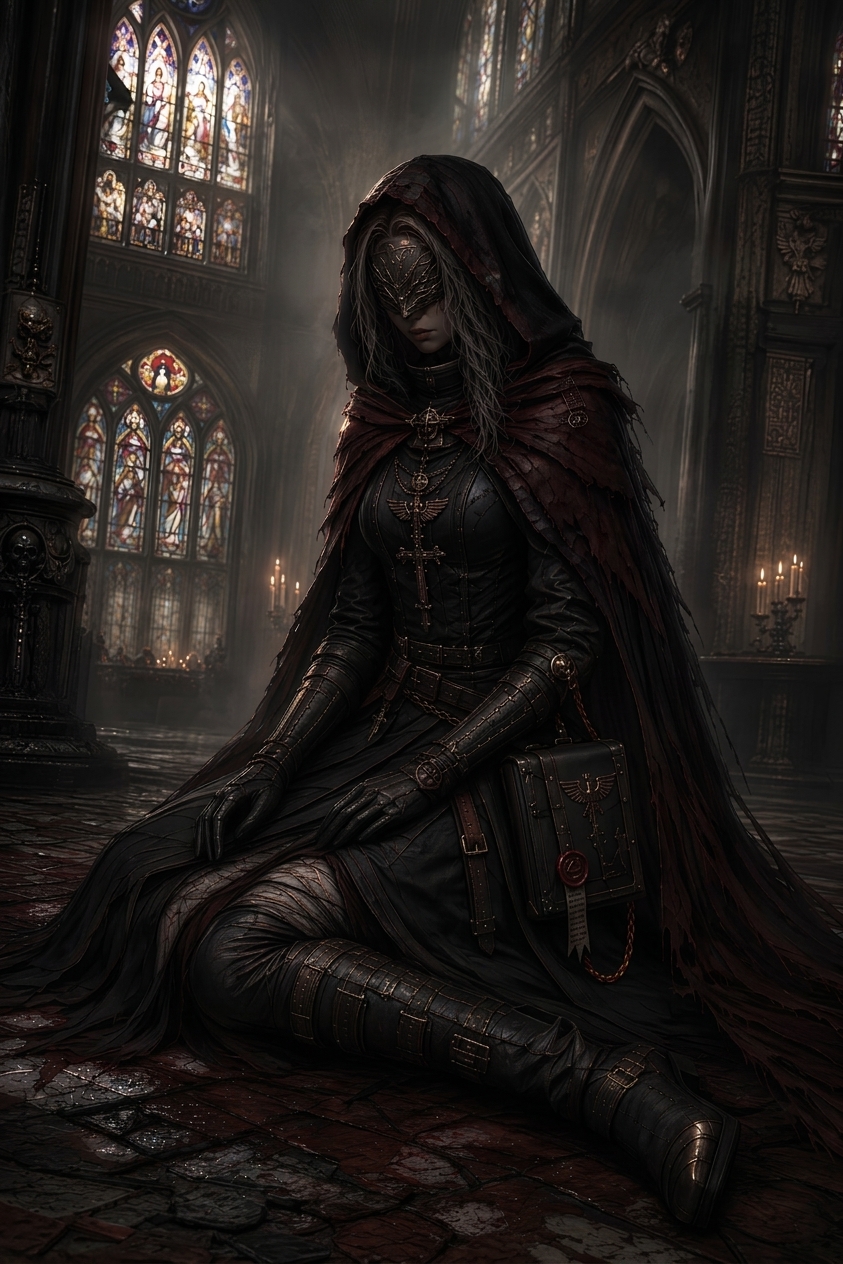
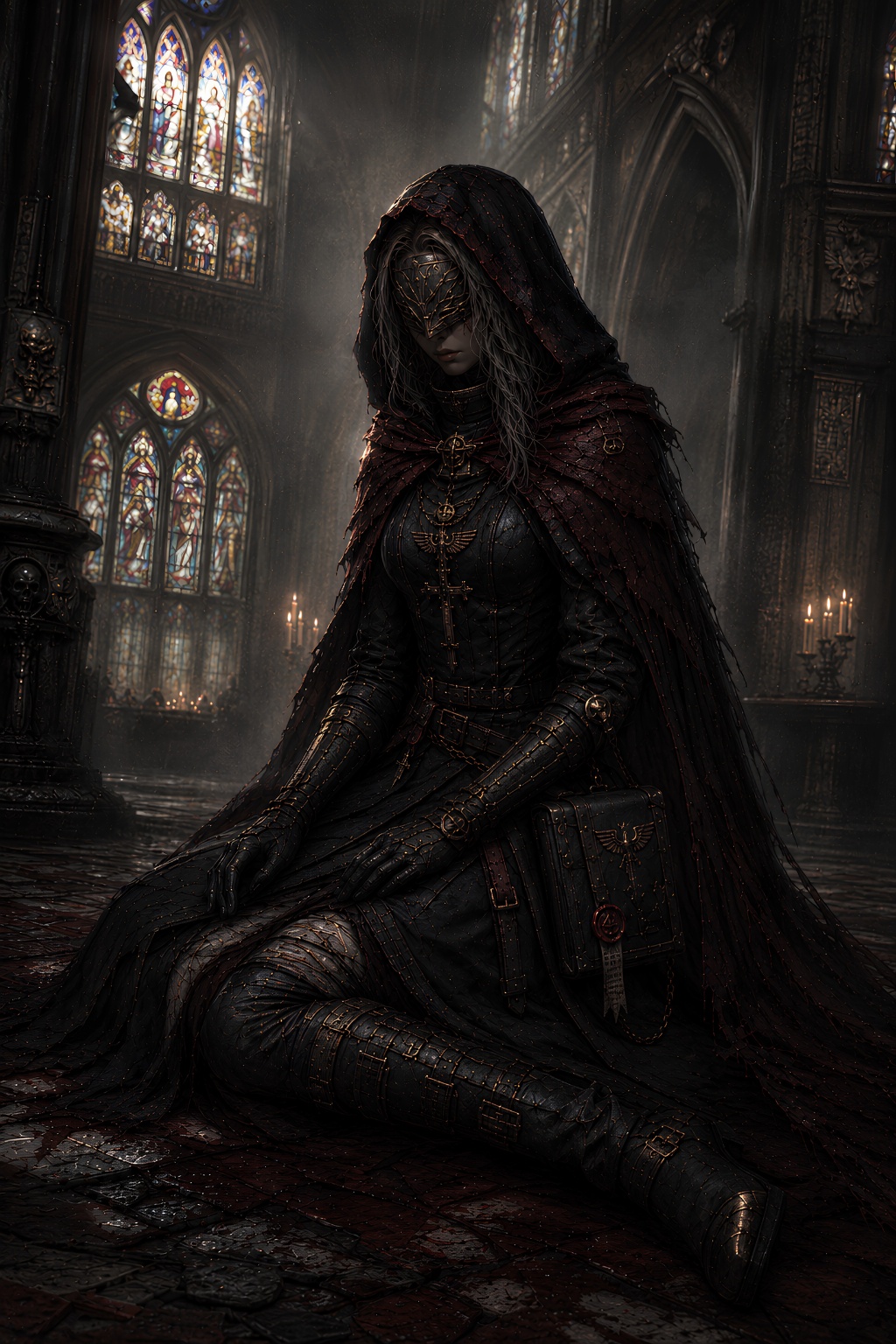
ChatGPT can generate impressive images, but the final output sometimes includes dirty texture, white speckles, repeating patterns, and crunchy over-rendered detail. Upload your ChatGPT image to denoise.pro to clean visible artifacts while keeping the original composition and style.
Look for speckled skies, gritty skin, muddy shadows, tiled backgrounds, false paper texture, and crunchy micro-detail that was not part of the intended image.
If the composition is already right, cleanup is usually faster than regenerating. denoise.pro targets the visible artifact layer while trying to preserve crop, color, style, and composition.
Avoid asking for maximum detail, ultra texture, grit, cinematic grain, or hyper-sharp surfaces when you want a clean output. Use cleaner phrases like smooth lighting, natural surfaces, and low visual noise.
Regenerate when the image content is wrong. Clean up when the image is usable but has grime, speckles, tiling texture, or overcooked generated detail.
We will load it into the main denoise.pro workspace, ask you to sign in, then start the cleanup from the same image.
AI-generated images can contain repeated textures, false detail, muddy surfaces, and noise-like patterns because the model is synthesizing image detail rather than capturing it from a camera.
Sometimes prompting helps, but visible noise and artifacts can persist even when the prompt asks for a cleaner image.
Use the highest-quality JPG, PNG, or WebP export available.