Before / after
Processing result
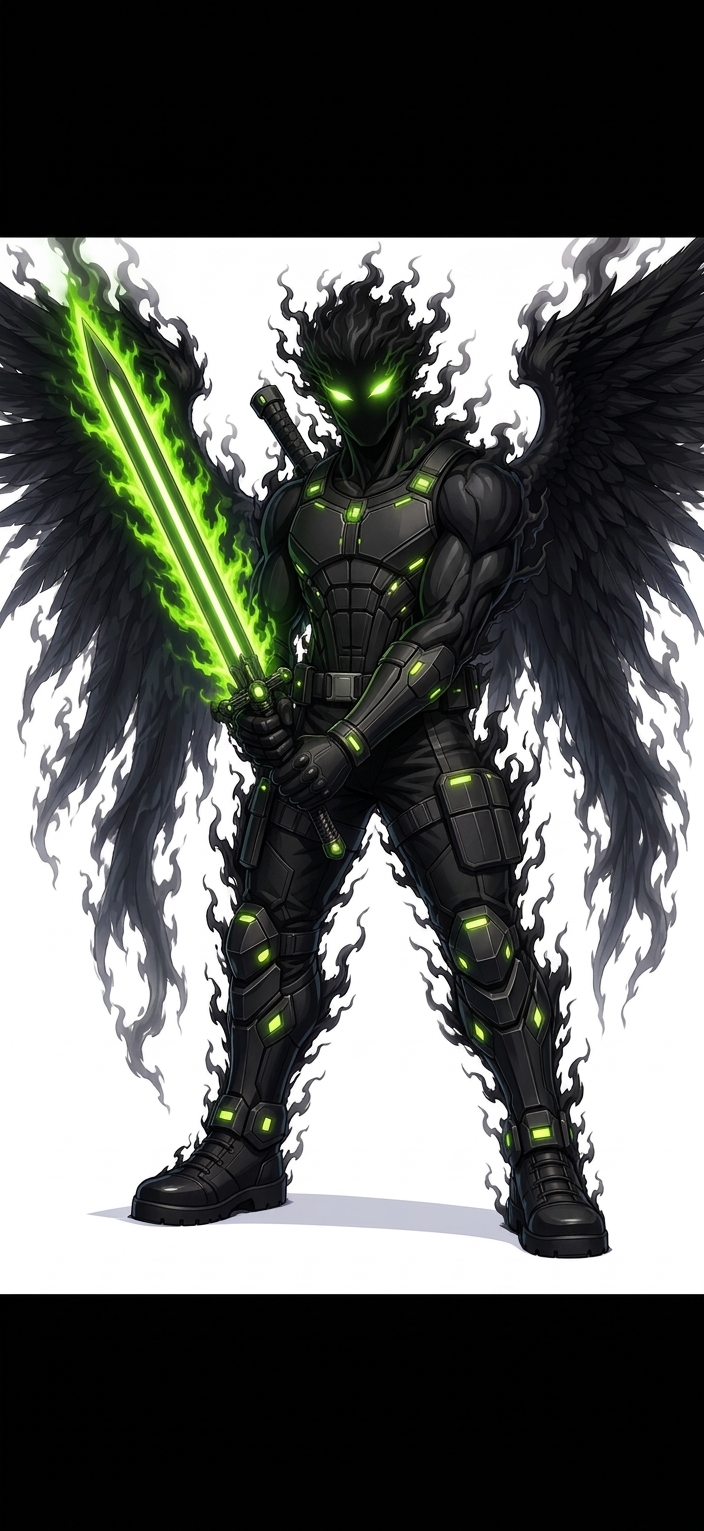
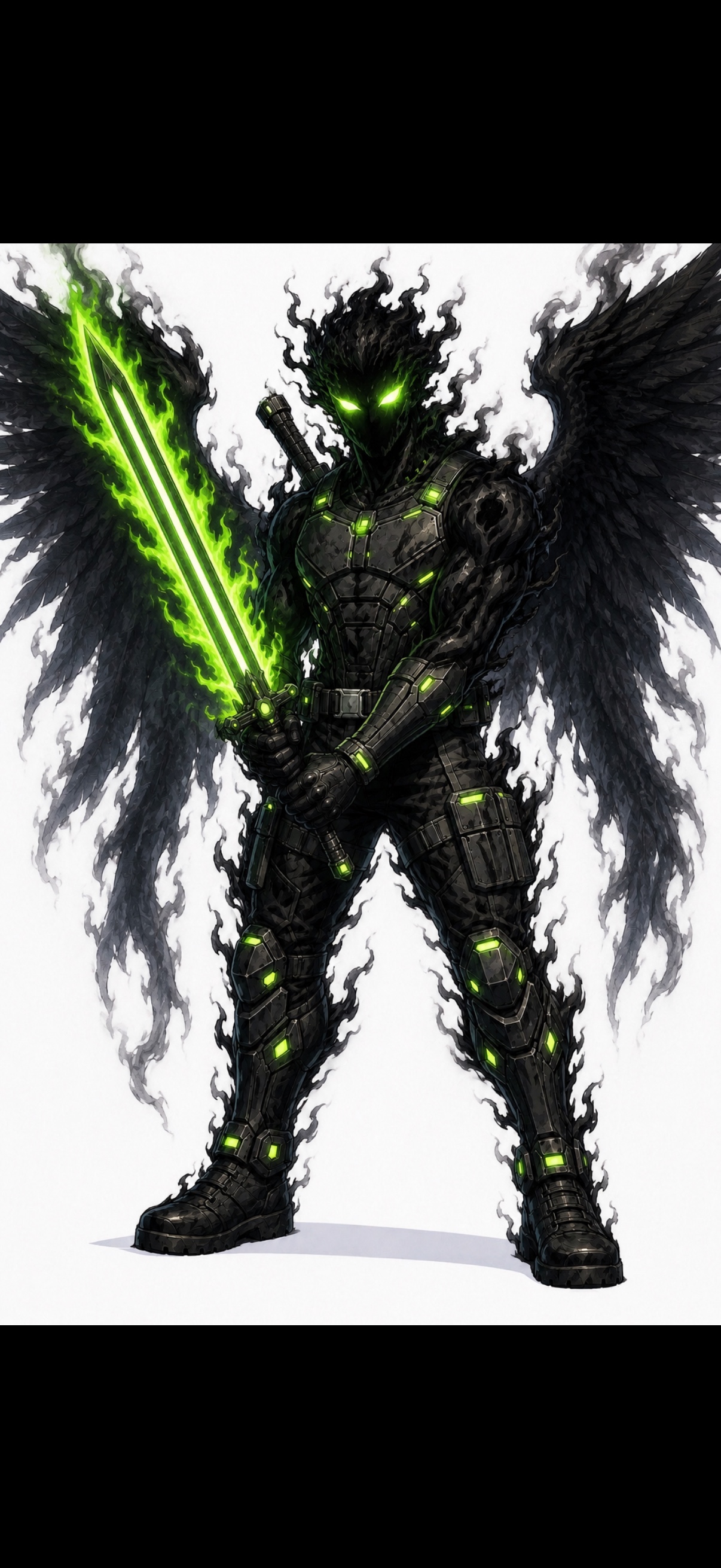
ChatGPT Image 2 can make strong images, but its worst failure mode is ugly: grime, speckles, crunchy detail, and weird texture that only becomes obvious when you open the image full-size.
The image may have good composition, lighting, and subject placement while still being covered in fake generated surface detail.
Users describe the problem as dusty, grimy, overcooked, tiled, crunchy, noisy, or like a dirty texture filter was applied to the whole image.
Simpler prompts with clean surfaces, soft shadows, natural detail, and no artificial grain can reduce the issue.
When the image is already close, denoise.pro removes grime, speckles, tiling, and crunchy texture without trying to reinvent the scene.
We will load it into the main denoise.pro workspace, ask you to sign in, then start the cleanup from the same image.
No. The issue is inconsistent: it can create good images, but some outputs have a dirty artifact layer.
Avoid ultra detailed, gritty, cinematic grain, maximum texture, and similar terms when you need clean commercial output.
Clean the artifact layer from the image you already like instead of regenerating repeatedly.